Teaching Tool Stack Finder
Not sure which apps to use? Tell us about your teaching priorities, and we'll recommend the best "stack" for your virtual classroom.
Your Recommended Stack
Fill out the form to generate your custom teaching toolkit.
Key Takeaways:
- Google Classroom is the gold standard for organization and assignment tracking.
- Zoom and Microsoft Teams offer the best live interaction but have varying time limits.
- Moodle is the powerhouse for those who want total control over their course structure.
- Canvas provides a professional university-grade experience for free in its "Free for Teacher" version.
The Heavy Hitters: Organizing Your Digital Classroom
If you're just starting, you probably don't need a fancy virtual reality setup; you need a place to put your homework and a way to talk to students. Google Classroom is a free blended learning platform that simplifies creating, distributing, and grading assignments in a streamlined way. It isn't a video calling app, but it acts as the "hub" for everything else. Since it integrates directly with Google Drive and Docs, you aren't wasting time uploading files; you're just sharing links.
For those who need more than just a folder for assignments, Canvas offers a Learning Management System (LMS) that provides a more structured academic environment. Their "Free for Teacher" tier is surprisingly generous. Unlike simpler apps, Canvas lets you build complex modules, meaning students can't move to Lesson 2 until they've passed the quiz for Lesson 1. This is a lifesaver if you're teaching a course that requires a strict linear progression, like a language or a math sequence.
Live Interaction: Where the Actual Teaching Happens
You can't teach a class just by posting PDFs. You need a face-to-face connection. While Zoom remains a favorite for its stability, the free tier is often a bottleneck due to the 40-minute limit on group meetings. If your lessons are short and punchy, it's fine. But if you're leading a 90-minute seminar, that timer is a nightmare.
This is where Microsoft Teams often wins. For educators using the Office 365 Education plan, Teams is essentially free and provides much longer meeting durations and deeper integration with Word and PowerPoint. Imagine being able to co-edit a slide deck with a student in real-time while you're both on a video call-that's the level of efficiency you want.
If you prefer a more casual, community-driven approach, Discord has become an unexpected powerhouse for online teaching. By creating different "channels" for different topics (e.g., #homework-help, #general-chat, #resource-library), you create a living classroom. The voice channels allow students to hop in and out of study groups without you needing to schedule a formal meeting.
| App | Best For | Free Limit | Key Strength |
|---|---|---|---|
| Google Classroom | Assignment Management | Unlimited (with Google Account) | Eco-system integration |
| Zoom | Live Lectures | 40 Mins / Group Call | Ease of use/stability |
| Microsoft Teams | Full School Integration | High (Edu Plan) | Collaboration tools |
| Canvas Free | Structured Courses | Free for Teachers | Professional LMS features |
| Moodle | Customization | Open Source / Free | Total control over data |
Taking Control with Open Source Options
If you're tech-savvy and hate the idea of a company owning your student data, Moodle is the answer. It is an open-source learning management system that allows educators to host their own platform. Now, "free" here means the software is free, but you might have to pay for a server to host it if you don't have one. However, once it's up, you have 100% control. You can add plugins for gamification, advanced quizzes, and detailed reporting that would cost hundreds of dollars in a commercial app.
The learning curve for Moodle is steeper than Google Classroom. You aren't just clicking "Create Class"; you're essentially building a website. But for a teacher who wants to create a specialized certification program or a private academy, this is the only way to avoid recurring monthly fees as you scale from 10 students to 1,000.
Boosting Engagement: Tools That Stop Students from Zoning Out
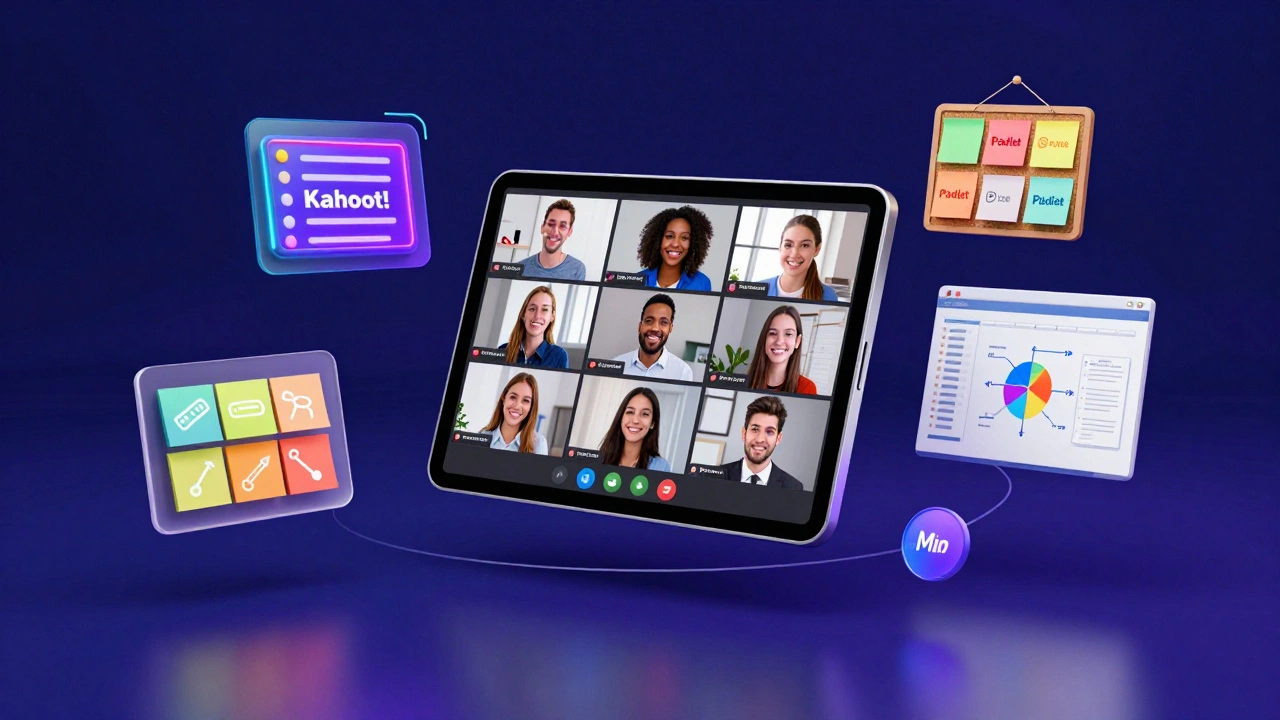
Let's be honest: staring at a screen for an hour is boring. To keep students awake, you need to break the monotony. Kahoot! is the go-to for turning a review session into a game show. By using their free tier, you can create multiple-choice quizzes where students compete for the top spot on a leaderboard. It transforms a dry lecture into a high-energy event.
For more collaborative work, Padlet acts like a digital corkboard. Instead of a boring Q&A session, you can have students post "sticky notes" with their thoughts, images, or links. It's an incredible way to visualize a brainstorming session. While the free version limits you to a few boards, it's usually enough for a single semester's core projects.
If you're teaching something visual, like art or coding, Miro provides an infinite whiteboard. You can map out complex workflows or have students draw diagrams in real-time. The best free app for online teaching is rarely just one app-it's usually a "stack" of tools that work together.
Avoiding Common Pitfalls in Free Software
The biggest mistake teachers make is overcomplicating their toolkit. If you tell your students they need to download Google Classroom, Zoom, Kahoot, Padlet, and Discord, half of them will quit before the first lesson. Pick one "Hub" (like Google Classroom) and one "Live Tool" (like Zoom or Teams). Add the engagement tools only when they serve a specific lesson goal.
Another trap is ignoring the "bandwidth gap." Not every student has a high-speed fiber connection. If you rely solely on high-def video calls, you'll lose the students who are joining from older tablets or slow Wi-Fi. Always provide a recorded version of your session or a written summary. This ensures that the learning doesn't stop just because someone's internet lagged.
Lastly, be careful with privacy. When using free apps, remember that the "product" is often the data. Ensure you're using the education-specific versions of these tools whenever possible, as they usually have stricter data protection rules than the standard consumer versions. Check the settings to ensure your students aren't being tracked by ads while they're trying to learn algebra.
Is there an app that does everything for free?
Not really. Most tools specialize. Google Classroom is great for organizing, but it doesn't do live video. Zoom does video but doesn't store assignments. The best approach is to combine a management tool (like Canvas or Google Classroom) with a communication tool (like Teams or Zoom).
How do I avoid the 40-minute limit on Zoom?
The easiest way is to switch to Microsoft Teams if you have an education account. If you're stuck with Zoom, try breaking your lesson into two shorter sessions or using a tool like Google Meet, which often has different limits for education users.
Which app is easiest for students who aren't tech-savvy?
Google Classroom is generally the most intuitive. Since most students already have a Google account, there's no new password to remember or complex software to install. It feels like a simple website rather than a complicated piece of software.
Can I use Discord for a formal class?
Yes, but it requires more moderation. Because Discord is a social platform, students may get distracted. However, for college-level courses or coding bootcamps, it's often preferred because it allows for organic, 24/7 discussion and quick screen-sharing.
What is the difference between an LMS and a video app?
A Learning Management System (LMS) like Moodle or Canvas is like a digital school building-it holds the syllabus, grades, and assignments. A video app like Zoom is like a classroom door-it's just the way you get in to talk to the teacher in real-time.
Next Steps for Setting Up Your Class
If you're overwhelmed, start with this simple three-step setup. First, create a Google Classroom to act as your home base. Second, set up a recurring Microsoft Teams or Zoom link for your live sessions and post that link in the "About" section of your classroom. Third, pick one engagement tool, like Kahoot, to use once a week. Once you've mastered that flow, you can look into more advanced systems like Moodle or Canvas.
For those teaching specialized subjects, consider the output. If you're teaching coding, look into integrating a shared GitHub repository. If you're teaching art, use a Padlet board for a virtual gallery. The tool should always serve the subject, not the other way around. Keep your setup lean, keep your students engaged, and don't let the technology get in the way of the actual teaching.